How to Use LFOs in Serum – Complete Guide to LFO Modulation
LFOs are one of the most powerful tools in Xfer Serum. If you have ever wondered how producers create those evolving, breathing bass sounds that shift and morph throughout a track, the answer is almost always LFO modulation. Understanding how to use LFOs properly is the difference between static, lifeless patches and sounds that feel alive.
This guide covers everything you need to know about Serum LFOs, from the basics through to advanced techniques like custom shapes, tempo-synced modulation, and stacking multiple LFOs for complex movement.
What Is an LFO
LFO Basics
LFO stands for Low Frequency Oscillator. Unlike the main oscillators that generate audible sound, an LFO operates below the audible range and generates a waveform you cannot hear directly. Instead, you use it to control other parameters in the synth.
Think of an LFO as an invisible hand that moves a knob back and forth automatically. Instead of manually turning the filter cutoff during playback, you assign an LFO to do it for you. Serum gives you four LFOs (LFO 1 through LFO 4), each assignable to virtually any parameter, giving you four independent modulation sources running at once.
LFO Parameters in Serum
Every Serum LFO has several key parameters you need to understand:
- Rate – How fast the LFO cycles. This can be set in Hz (free-running) or synced to your project tempo in note divisions like 1/4, 1/8, 1/16, and so on.
- Shape – The waveform the LFO uses. Sine, triangle, sawtooth, square, and custom shapes are all available.
- Mode – How the LFO behaves when a note is triggered. Options include Trigger (restarts with each note), Envelope (plays once then stops), and Off (free-running, does not restart).
- Phase – Where in its cycle the LFO starts when triggered. At 0 degrees it starts from the beginning, at 180 degrees it starts halfway through.
- Smooth – Rounds off sharp corners in the LFO shape for smoother transitions.
- BPM Sync – Locks the LFO rate to your DAW’s tempo so the modulation stays in time with your track.
Assigning LFOs to Parameters
Drag and Drop Assignment
Serum makes LFO assignment incredibly simple. To assign an LFO to any parameter:
- Click on the LFO source label at the bottom of the LFO display (it will say LFO 1, LFO 2, etc).
- While holding the mouse button, drag it onto any parameter knob in Serum.
- Release the mouse button over the target parameter.
- A blue ring will appear around the knob showing the modulation depth and direction.
You can also right-click any knob and select your LFO from the modulation source list. Both methods work the same way.
Adjusting Modulation Depth
After assigning an LFO, set how much it affects the parameter by clicking and dragging the blue ring around the modulated knob. Dragging clockwise increases the depth, counterclockwise decreases it. Hold Alt (Option on Mac) while dragging for bipolar modulation, which makes the LFO modulate both above and below the current knob position.
Common LFO Assignments for Bass Music
Here are the most useful LFO assignments for bass music production:
- Filter Cutoff – The classic assignment. Creates wubs, wobbles, and filter sweeps. Essential for dubstep, drum and bass, and bass house.
- Wavetable Position – Morphs the timbre of the oscillator over time, creating evolving textures.
- Volume/Level – Creates tremolo effects and rhythmic gating patterns.
- Pitch (Fine) – Adds vibrato for more organic, expressive sounds.
- Distortion Drive – Modulates how much distortion is applied, creating sounds that pulse between clean and aggressive.
- Resonance – Makes the filter’s resonant peak sweep independently from the cutoff for more complex movement.
- Pan – Creates auto-panning effects that move the sound across the stereo field.
- Unison Detune – Modulates the detuning amount for sounds that pulse between tight and wide.
LFO Shapes and When to Use Them
Sine Wave LFO
The sine wave is the smoothest LFO shape. It creates gentle, flowing movement with no sudden changes. Use a sine LFO on filter cutoff for classic wobble basses, on pitch for vibrato, or on wavetable position for slow, evolving pads and textures.
For drum and bass producers, a sine LFO on filter cutoff at 1/4 or 1/2 rate creates the rolling, liquid bass movement heard in tracks by Calibre, LSB, and Etherwood. It is smooth enough to sit underneath a mix without being distracting.
Triangle Wave LFO
Similar to sine but with slightly sharper transitions at the peaks and troughs. Triangle LFOs work well for wavetable position modulation because the linear movement creates a more even timbral sweep. Use it when you want movement that feels deliberate and mechanical rather than organic.
Sawtooth Wave LFO
The sawtooth ramps up gradually then drops suddenly (or ramps down and jumps up, depending on direction). This creates an asymmetric movement that is brilliant for filter sweeps that build tension then reset. A sawtooth LFO on filter cutoff creates that classic rising filter effect that drops back to the start on each cycle.
In bass house and UK bass, sawtooth LFOs on filter cutoff create the signature riser-style bass movements that drive the groove forward.
Square Wave LFO
The square wave jumps instantly between two values with no transition. This creates hard, rhythmic on/off effects. Assign a square LFO to volume for a gating effect, or to filter cutoff for an instant open/closed filter pattern.
Square LFOs at fast rates (1/8 or 1/16) on filter cutoff are a staple of neurofunk drum and bass. That choppy, aggressive filter movement is almost always a square or near-square LFO shape.
Custom LFO Shapes
This is where Serum really separates itself from other synths. You can draw completely custom LFO shapes by clicking on the LFO display and adding, moving, or deleting control points. You can create any shape you can imagine.
To create a custom LFO shape:
- Click anywhere on the LFO grid to add a new point.
- Drag points up, down, left, or right to reshape the waveform.
- Right-click a point to delete it or change the curve type between the points.
- Use the curve handles between points to create curved transitions instead of straight lines.
- Right-click the LFO background for options to reset, save, or load LFO shapes.
Custom shapes let you design LFO patterns that emphasise certain beats, create syncopated rhythms, or hold at specific positions before sweeping. Many presets in our dubstep Serum preset packs use custom LFO shapes to create movements impossible with standard waveforms.
Tempo Sync and Rate Settings
Free-Running vs Synced LFOs
By default, Serum LFOs run at a fixed Hz frequency regardless of project tempo. For bass music, you will almost always want LFOs synced to tempo. Click the note icon next to the Rate knob to enable BPM sync, and the Rate snaps to musical divisions: 4/1, 2/1, 1/1, 1/2, 1/4, 1/8, 1/16, plus dotted and triplet variations.
Choosing the Right LFO Rate for Your Genre
Different genres typically use different LFO rates for their signature sounds:
- Dubstep (140 BPM) – 1/4 note for classic half-time wobbles, 1/2 for slower growls, 1/8 for faster rhythmic movement.
- Drum and bass (170-175 BPM) – 1/2 or 1/1 for rolling basses, 1/4 for faster filter movement, 1/8 for choppy neurofunk patterns.
- Bass house (124-128 BPM) – 1/4 for pumping bass movement, 1/8 for tighter rhythmic patterns, 1/2 for slower builds.
- UK bass (130-140 BPM) – 1/4 for groove-locked movement, custom shapes for garage-influenced patterns.
Triplet rates (1/4T, 1/8T) create a swing feel that works particularly well in garage-influenced bass music. Dotted rates (1/4D, 1/8D) create a slightly offset, bouncy feel that can add unexpected groove to a bassline.
LFO Modes Explained
Trigger Mode
In Trigger mode, the LFO restarts from the beginning of its cycle every time a new MIDI note is played. This is the most common mode for bass music because every note gets the same filter sweep and rhythmic pattern. Essential for wobble basses and any sound where the LFO needs to align with your MIDI.
Envelope Mode
In Envelope mode, the LFO plays through its shape once and then stops. It does not loop. This turns the LFO into a complex, drawable envelope that can shape a parameter over the duration of a single note.
Envelope mode is incredibly powerful for sound design. You can draw a complex filter movement that happens once per note, creating bass hits with intricate timbral evolution that would be impossible with standard ADSR envelopes. Many drum and bass Serum presets use LFOs in envelope mode to create one-shot bass stabs with complex internal movement.
Off Mode (Free-Running)
In Off mode, the LFO runs continuously and does not restart when a new note is played. Each note catches the LFO at a different point in its cycle, creating variation. Free-running LFOs work well for pads and ambient textures but are less common in bass music because the inconsistent timing can disconnect the bass from the rhythm.
Advanced LFO Techniques
Stacking Multiple LFOs
One of the most powerful techniques in Serum is assigning multiple LFOs to the same parameter at different rates. For example, assign LFO 1 to filter cutoff at 1/4 rate with a sine shape, then assign LFO 2 to filter cutoff at 1/16 rate with a triangle shape but at a lower modulation depth.
The result is a filter movement that has a broad, sweeping motion from LFO 1 with a faster, subtle ripple from LFO 2 layered on top. This creates a much more complex and interesting sound than a single LFO alone.
Try these stacking combinations:
- Slow sine + fast triangle on filter cutoff – Creates wobble bass with an internal shimmer.
- Medium saw + slow sine on wavetable position – Creates an evolving timbre with a rhythmic pulse.
- Fast square on volume + slow sine on filter cutoff – Creates gated, rhythmic bass with a sweeping filter underneath.
- Slow sine on pitch (fine) + medium triangle on filter cutoff – Adds pitch wobble to a filter sweep for a more organic, detuned feel.
LFO to LFO Modulation (Rate Modulation)
In Serum, you can assign one LFO to modulate the rate of another LFO. Drag LFO 2 onto the Rate knob of LFO 1, and LFO 1’s speed will increase and decrease based on LFO 2’s output. A slow sine on LFO 2 modulating LFO 1’s rate creates a wobble that speeds up and slows down in a breathing pattern. This technique is used heavily in dubstep for basses that accelerate into a growl and then slow back down.
Using LFOs as Step Sequencers
By drawing a custom LFO shape with flat steps connected by instant transitions, you can create a step sequencer effect. Assign this stepped LFO to pitch (coarse) and you have a built-in arpeggiator. Assign it to filter cutoff for a rhythmic pattern of distinct filter positions. This technique is especially useful for complex bass patterns in neurofunk and tearout drum and bass.
Practical LFO Recipes for Bass Music
Classic Dubstep Wobble
- Load a saw-heavy wavetable on OSC A.
- Set Filter 1 to MG Low 24 with cutoff at about 20% and resonance at 40%.
- Assign LFO 1 to Filter 1 cutoff with a sine shape at 1/4 rate (tempo synced).
- Set modulation depth so the filter sweeps from near-closed to about 70% open.
- Add distortion in the FX chain (Tube or Hard Clip mode).
- Adjust LFO rate between 1/2 and 1/8 to change the wobble speed during your track.
For more wobble variations and production-ready dubstep sounds, explore our dubstep preset collection.
Rolling DnB Bass
- Use a square or pulse wavetable on OSC A at -1 octave.
- Enable the sub oscillator with a sine wave for low-end weight.
- Set Filter 1 to a low-pass with cutoff at 35% and moderate resonance (30%).
- Assign LFO 1 to Filter 1 cutoff with a sine shape at 1/2 rate synced to BPM.
- Set a gentle modulation depth. The filter should breathe rather than dramatically sweep.
- Add light Chorus in FX for width and warmth.
This creates the smooth, flowing bass movement found in liquid and rolling drum and bass. Our drum and bass presets include a full range of rolling bass patches ready to drop into your tracks.
Bass House Pumping Bass
- Load a saw or square wavetable on OSC A.
- Set Filter 1 to a band-pass or low-pass with moderate cutoff.
- Assign LFO 1 to Filter 1 cutoff with a custom shape: draw a fast rise followed by a gradual fall, like a reversed sawtooth with curved transitions.
- Set rate to 1/4 synced to tempo.
- Assign LFO 2 to volume at 1/4 with a sidechain-style shape (sharp dip then recovery) to mimic sidechain compression.
- Add saturation and compression in the FX chain.
This combination of filter movement and volume ducking creates that pumping, groove-locked bass house sound. Check out our bass house Serum presets for more patch ideas in this style.
Saving and Loading LFO Shapes
When you create a custom LFO shape you like, right-click the LFO display and select “Save Shape” to store it for future use. Serum saves these as .shp files in your Serum presets folder. You can build up a personal library of LFO shapes over time. You can also copy LFO settings between Serum’s four LFOs using right-click “Copy” and “Paste” to duplicate shapes between slots.
If you want to study how professional sound designers use LFO modulation, downloading preset packs is one of the best ways to learn. Open any preset, look at how the LFOs are configured, and reverse-engineer the techniques. Our full range of Serum preset packs all include detailed LFO programming that you can study and learn from.
Common LFO Mistakes to Avoid
Too Much Modulation Depth
Setting the LFO depth too high is the most common beginner mistake. Start with subtle amounts and increase gradually. Most professional presets use surprisingly restrained modulation depths.
Ignoring Phase Settings
If your bass sounds slightly off from the kick, try adjusting the LFO phase. Shifting by 90 or 180 degrees can lock the modulation perfectly into the groove.
Not Using Trigger Mode for Bass
If your wobble sounds different on every note, check the LFO is set to Trigger mode. In Off mode, each note catches the LFO at a random point, causing inconsistent playback.
Forgetting About Macro Control
Assign LFO rate and depth to Serum macros so you can automate wobble speed and intensity throughout your track. This gives you live performance control and makes your tracks more dynamic.
LFO Modulation in Context
Understanding LFO modulation is one piece of the larger Serum sound design puzzle. LFOs work alongside envelopes, wavetable manipulation, filter types, FM synthesis, and effects processing to create the full range of bass music sounds. If you are new to Serum, make sure you also understand the basics of installing and using Serum presets to speed up your workflow.
For producers who want a head start with professionally designed LFO modulation, browse our complete collection of Serum preset bundles. Every preset includes carefully programmed LFO assignments that you can use as-is or deconstruct to learn new techniques. Whether you produce dubstep, drum and bass, bass house, or UK bass, having high-quality presets in your library saves time and teaches you sound design by example.
Related Preset Packs
Looking for professional bass music presets? Check out these Serum preset packs:
Ready to level up your sound?
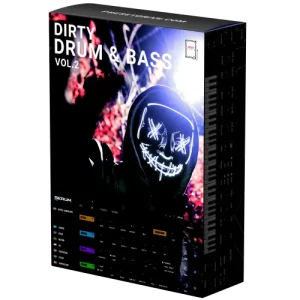
Dirty Drum & Bass Vol.2
Professional DnB presets for Serum. Reeses, neuro basses, subs, and more.
£29.99
Shop Now →Not sure yet? Grab our free taster pack first.


